Credentials
Use this function to enable the definition of authentication of the Server or other network components that helps to confirm their identity in a monitored network environment.
When Discovery attempts to access a device, it tries all available credentials until the correct ones are located. After identifying the credentials for a device, Discovery creates a mapping between the credentials and the device. All subsequent discovery activities attempt to match the credentials with a device for which an mapping exists. If credentials for a device change, Discovery tries all available credentials again until a new mapping is created.
In the main window, click Admin > Discovery > Credentials. The Credentials window displays. 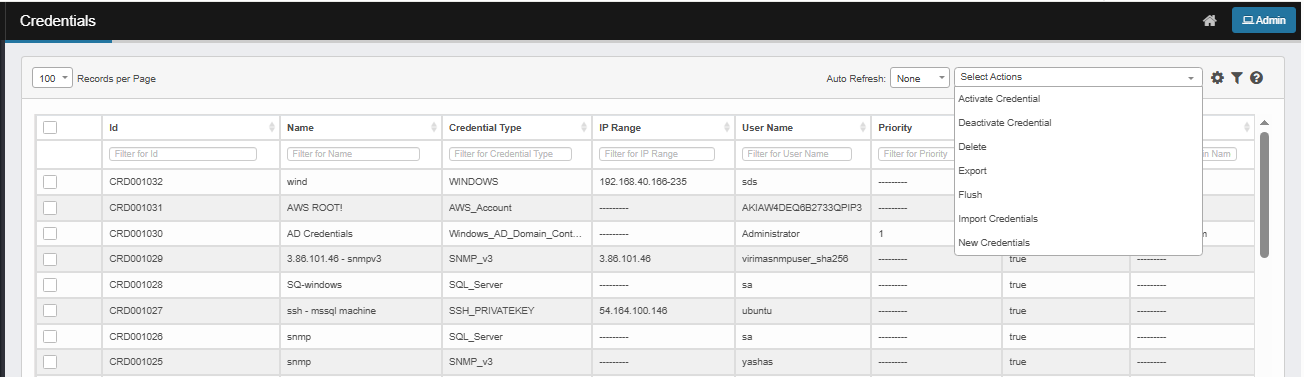

 New Credential
-
From the Select Actions drop-down list, choose New Credentials.
-
To add a new credential, click New Credentials.
Activate Credential
-
Select one or more credentials to activate.
-
From the Select Actions drop-down list, choose Activate Credentials.
-
In the confirmation dialog box, Click Yes to proceed or No to cancel.
Deactivate Credential
-
Select one or more credentials to activate.
-
From the Select Actions drop-down list, choose Deactivate Credentials.
-
In the confirmation dialog box, Click Yes to proceed or No to cancel.
Flush Credential
-
Select the credential you wish to flush.
-
From the Select Actions drop-down list, choose Flush Credentials.
-
In the confirmation dialog box, Click Yes to proceed or No to cancel.
Import Credentials
-
From the Select Actions drop-down list, choose Import Credentials.
-
Attach credential data files pop-up appears.
-
Click Click here to download the sample file to download the sample and prepare your data.
-
Click Browse and select your file.
-
The Preview data to be imported and map columns window opens.
-
Map your columns to app properties (the row preview helps you verify).
-
Use the dropdown above each column to select the matching app property (e.g., Credential Name, Credential Type, IP Range, User Name, Password, SSH Pass, etc.).
-
Click Submit to import (or Cancel to abort).
-
Click Upload to upload the file.
Edit Credential
| Not all functions include an option to edit record line items shown in the main window. |
| 1. | Navigate to the window containing the record to edit. |
| 2. | Click the line containing the record. The applicable window or dialog box displays. |
| 3. | Make the necessary modifications. |
| 4. | Click Save or Add, as applicable. |
When editing an existing item, other options may be available, such as adding Tasks, Comments, and Attachments and viewing History.
| The options change based upon the function; therefore, not every option may be shown. |
Delete Credential
| Deleting is a permanent action and cannot be undone. Deleting may affect other functionality and information in the application such as data in configured reports, fields in windows, selectable options, etc. Therefore, be sure to understand the potential effects before making a deletion. |
| 1. | Click the line that contains the item to delete. |
| 2. | From the Select Actions drop-down list, choose Delete. If a confirmation message is displayed, type Delete and click Deleteto confirm. |
Related Topics
Other Functions and Page Elements