Department Members
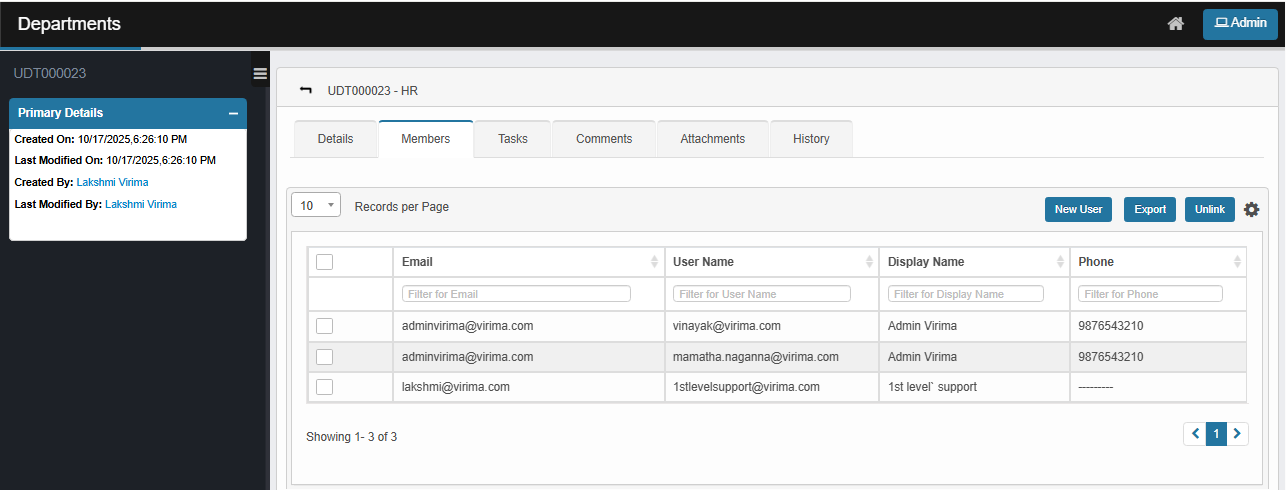
Use this function to add new department members for the organization.
| 1. | In the main window, click Admin > Organization Details > Departments. The Departments window displays. |

| 2. | Click a record in the list for the department to which you want to add a new member. |
| 3. | In the Details window, click the Members tab. |
| 4. | Click on New User, search and select the member. |
| 5. | Click on Unlink to dissociate the member. |
| 6. | Click on Export to export the selected member details. |

 New Member
| 1. | Click New User. |
| 2. | In the Members dialog box, search for and select the users to add as members to this department. |
| 3. | When all selections are made, click Save. |
Edit Member
| Not all functions include an option to edit record line items shown in the main window. |
| 1. | Navigate to the window containing the record to edit. |
| 2. | Click the line containing the record. The applicable window or dialog box displays. |
| 3. | Make the necessary modifications. |
| 4. | Click Save or Add, as applicable. |
When editing an existing item, other options may be available, such as adding Tasks, Comments, and Attachments and viewing History.
| The options change based upon the function; therefore, not every option may be shown. |
For Email Preferences and Inbox, refer to Admin > Users.
Unlink Member
| 1. | Click the Members tab. |
| 2. | Click the checkbox and select the member to dissociate. |
| 3. | In the confirmation window, click Unlink. |
Other Functions and Page Elements