New Configuration Item (CI)

Use this function to configure a new CI by entering values for the parameters present.

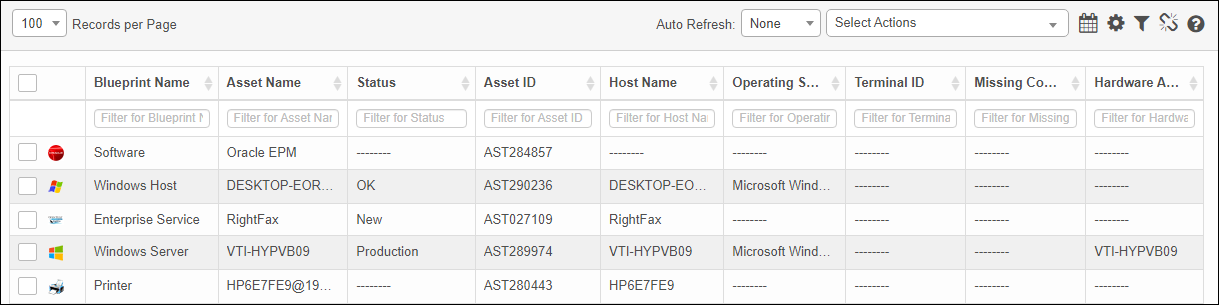
1. In the navigation pane, select ITSM > Configuration Management > Configuration Items. The Configuration Items window displays.
1. In the navigation pane, select ITAM > Configuration Management > CMDB. The Configuration Items window displays.
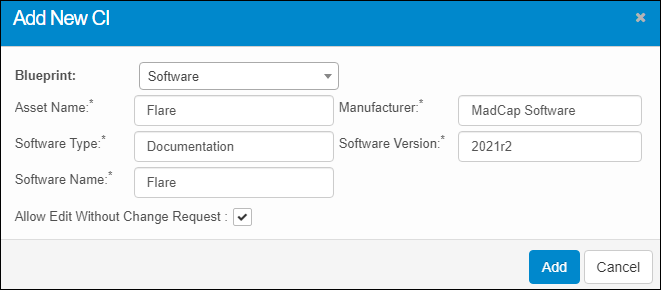
2. From the Select Actions drop-down list, choose New. The Add New CI dialog box displays.
3. From the Blueprint drop-down list, select the applicable type of configuration item. Based on the selection, the fields in the dialog box change.
4. Add the required (*) information.
 

Allow Edit Without Change Request

If this option is checked, the CI can be edited after it's created.
If this option is not checked, and an edit is required, either of the following must occur:
- A change request must be created. HOW IS THIS DONE?
- The user must have a role with relevant access (as per SACM Role Access)

If a user has the ability to edit the CI, this option can be enabled/disabled on-the-fly by doing the following:

1. While viewing the Configuration Items window, select the applicable item.
2. In the resulting window, from the Select Actions drop-down list, do one of the following:
- To allow editing, select Enable Editing.

- To disallow editing, select Disable Editing.

3. When all selections/entries are made, click Add. A notification email is sent to the configured user regarding CI creation.


Related Topics

About Configuration Items
Edit Configuration Items
Configuration Item Options